Hello Bar

Tuesday, January 18, 2011

Make GIMP the Default External Editor in iPhoto


Apple's iPhoto has some really good editing tools, but sometimes you need the far more powerful tools available in GIMP. You can easily make GIMP the default editor for iPhoto images.

Open the iPhoto Preferences window and you'll see an option "Edit photo:".

edit-in.png

The current selection is probably "In main window".

Click the arrow button and choose "In application…".

in_application.png

Choose GIMP in the Open dialog.

choosegimp.jpg

Now GIMP is the default editor for your iPhoto images. When you select a photo and click the Edit icon in the iPhoto tool bar, the image will be opened in GIMP.

If, like me, you don't want to launch GIMP for minor editing and adjustments, you can reset iPhoto to default to its internal editor when you click the Edit icon. Simply go back to the Preferences window and reset the "Edit photo:" option to "In main window".

gimp2main.png

However, if you Cmd-click or right-click on the photo to display its contextual menu, choosing "Edit in external editor" will still open the image in GIMP, giving you the best of both worlds!

editinext.png

DISCLOSURE OF MATERIAL CONNECTION: http://cmp.ly/0


Tuesday, January 11, 2011

Quick and Easy Zoom Effect

In this tutorial you’ll create the effect of having zoomed in on a portion of a screenshot to emphasize something in that area.

This lesson was inspired by Jessica Cam Wong's very good tutorial on this effect. In this exercise your product may be be less elegant, but you'll achieve what I believe is a satisfactory and pleasing result a bit more easily and quickly.

A portion of this procedure includes using the GIMP Layer Effects plugin. If you don't have the Layer Effects plugin installed, you can get it here at the GIMP Plugin Registry.

Some of the skills you will use in this exercise:
  • Create a new layer from a pasted selection
  • Expand a new layer to the size of the image
  • Resize (scale) a layer
  • Create a selection using Alpha to Selection
  • Grow a selection
  • Apply the Drop Shadow filter
  • Hide, merge, and reveal layers
You will, of course, need a screenshot on which to work. You can capture a screenshot in GIMP using File > Create > Screenshot… . Capture an approximately 700-800 pixel square screenshot using whatever method you prefer.

Begin by using the Ellipse Select tool to define the "zoomed in" area.

Then copy and immediately paste this selection (Ctrl+C, Ctrl+V). It looks as though nothing has happened, but in the Layers pallet you should notice a "Floating Selection".

Create a new layer (Layer > New Layer…) which will turn this floating selection into a new layer, name it Zoom. Expand this layer to the full image size, Layer > Layer to Image Size.

In the Layers pallet, select the Background layer. Scale this layer down to the desired size, Layer > Scale Layer… . I made the Background layer 400 pixels wide.

Position the Zoom layer over the Background layer as desired.

Right-click the Zoom layer in the Layer pallet and select Alpha to Selection. This creates a selection from the zoomed in area.


Grow the selection by 2 pixels, Select > Grow… .

Create a new layer, Border, and use the Bucket Fill tool to fill the selection on the Border layer with black, the foreground color.


In the Layers pallet drag the Border layer below the Zoom layer.


Apply the Inner Shadow script from the Layer Effects plugin, Script-Fu > Layer Effects > Inner Shadow… with the default settings. You can skip this step and still get a fairly nice effect if you don't want to install the plugin.


Remove the current selection, Ctrl+Shft+A. Now apply a Drop Shadow to the Zoom layer, Filters > Light and Shadow > Drop Shadow… . Use the default settings.

The next step is to merge the Drop Shadow, Border, and Zoom layers. In the Layers pallet, click the eye icon for the Background layer to hide it temporarily. Right-click any of the visible layers and select Merge Visible Layers…, then click the Merge button.

Make the Background layer visible again (click where the eye should be) and select that layer.

From here, I'm going to present two different ways to finish this effect.


Background Blur
Blur the Background layer just a bit, Filters > Blur > Gaussian Blur… , set the Blur Radius at 2 for both Horizontal and Vertical.


Background Dim
Create a new layer, named Dim, in the Foreground Color (black). Set the Dim layer's opacity to about 25%.

Finally, crop out the transparent region around the perimeter, flatten the image, and save it as a JPG or PNG for web use.

Experiment with different settings, filters, and colors to get an effect you like. As always, I’ve tried to use one or two less familiar tools or techniques. Hope you learned something and are inspired to try something new.

Sunday, September 5, 2010

Attack of the Clones!

In this easy lesson, you will learn how to create an image which appears to show the same person appearing in multiple locations in a scene.

kaileeproj-08-1.png

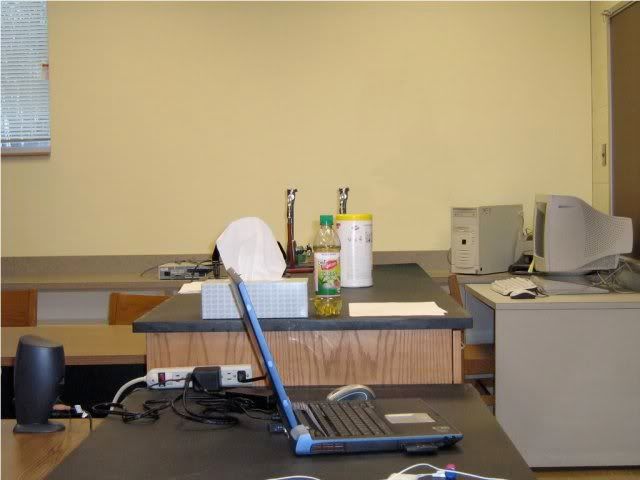
Ideally you would begin with a photo of the scene without the person in it to use as the background image.

kaileeproj-empty.png

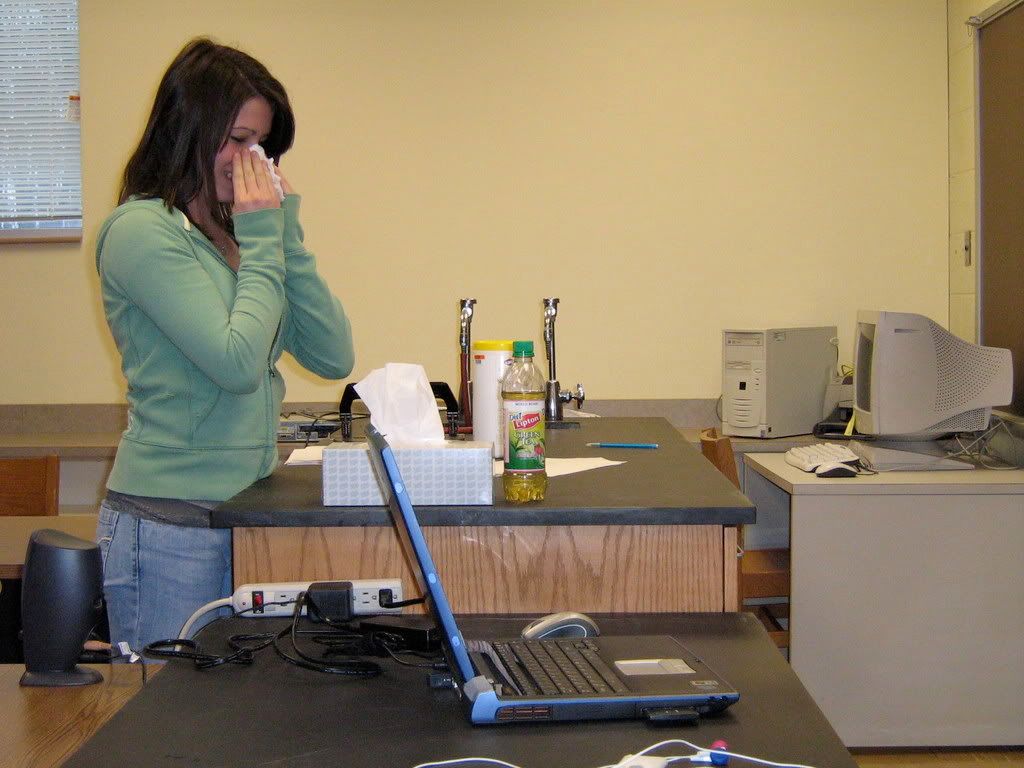
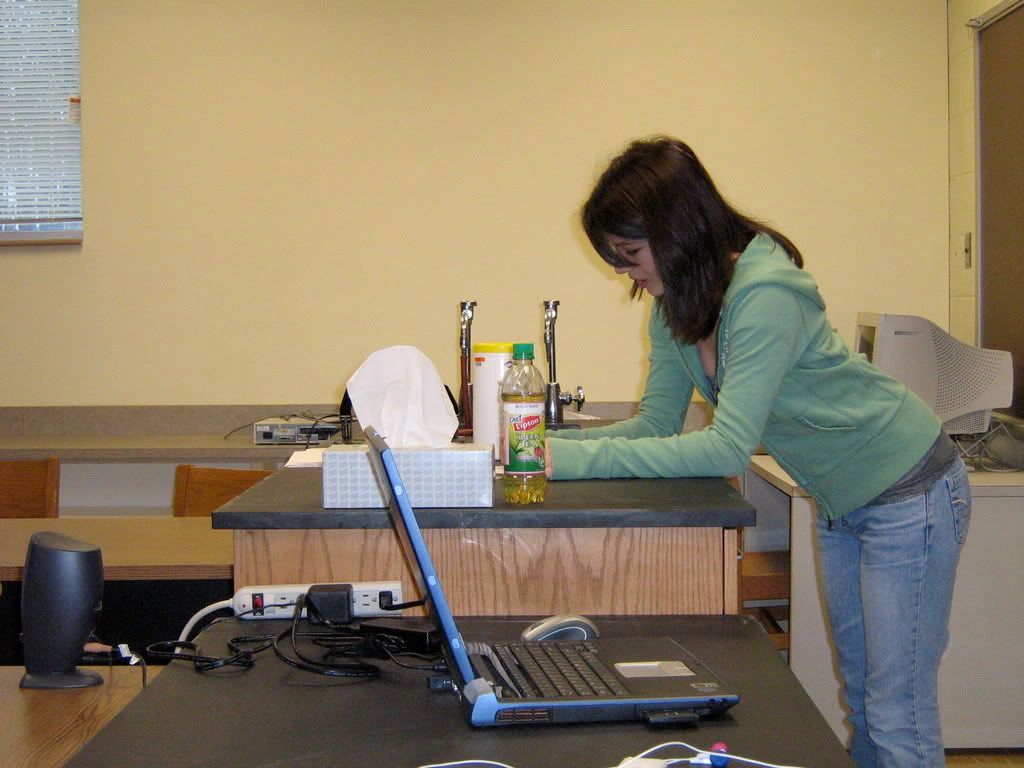
You will need at least two pictures of the same scene with the person you plan to clone appearing in a different location in each photo.

Tip: For best results, set up the camera using a tripod and keep its position and settings fixed for all the photos.

Download source images here:

empty background | girl left | girl right | girl back

Step 1. Using the Free Select Tool (Lasso) roughly select the person you plan to clone in one of the photos in which she appears. Feather the selection by a few pixels, Select > Feather...

kaileeproj00L-02.png

The selection needn't be precise. In fact, having some of the surrounding content makes it easier to properly position the pasted layer.

Step 2. Copy the selection,Edit > Copy, then paste it into the background image as a new layer, Edit > Paste as > New Layer.

kaileeproj-03.png

Step 3. Use the Move Tool (in Layer mode) ...

move_tool.png

... to properly position the clone over the background. Zoom in and use some key points to accurately align the clone layer.

kaileeproj-04.png

Repeat Steps 1-3 to copy, paste, and position the person you are cloning from an image in which she appears in a different place.

Step 1

kaileeproj-05.png

Step 2

kaileeproj-06.png

Step 3

kaileeproj-07.png

You now have a picture in which the same person appears in two different places!

kaileeproj-08-1.png

If you have more photos of your person, try placing her in various locations in the scene to get the most interesting results.

kaileeproj-09.png

The challenge comes when one of your clones is to appear in front of another. In this case, your selection must be precise in the areas where the forward clone layer overlays the rear one. But, you can create a really interesting effect this way.

kailee_3_a_sml.jpg

Imagine and Create!!!