Hello Bar

Showing posts with label saturation. Show all posts

Thursday, August 9, 2012

Southern Exposure

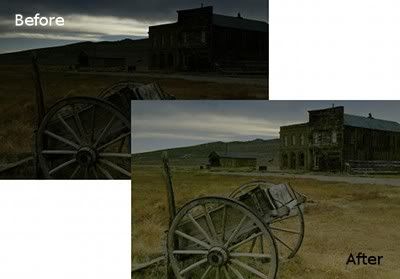
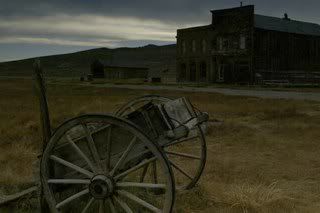
In this short lesson you will learn a quick, easy procedure to use when you need to recover a badly underexposed photograph. A photograph is described as underexposed when there is not enough light in the photo, so it has a loss of shadow detail. This GIMP tutorial is based on a method described by Dave Johnson in PCWorld.

Open the image you want to make a bit more presentable.

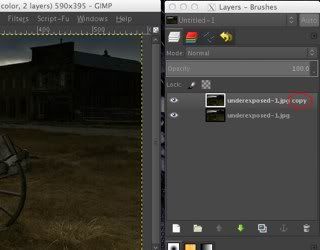
Duplicate the background layer (right-click on the layer and select Duplicate Layer or select Duplicate Layer from the Layer menu) so that there are two identical layers in the Layers pallet.

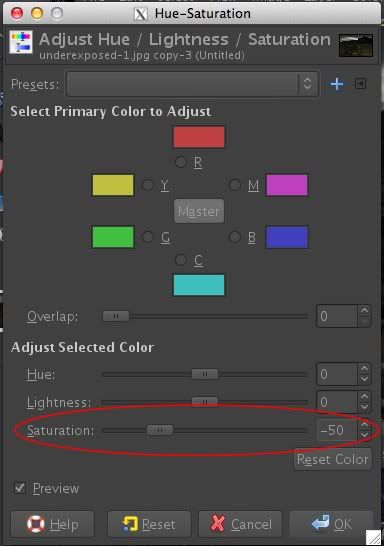
Be certain the duplicate layer, [image name] copy, is the active layer. From the Colors menu select Hue-Saturation... . Slide the Saturation control left to reduce the saturation to -50.

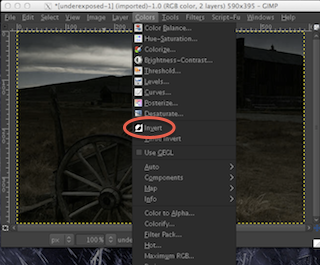
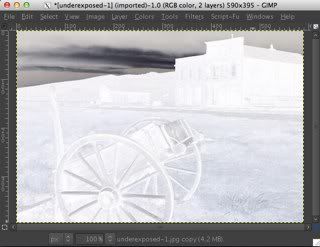
Again from the Colors menu, choose Invert.


The top layer should now look more or less like the negative of a black-and-white photo.

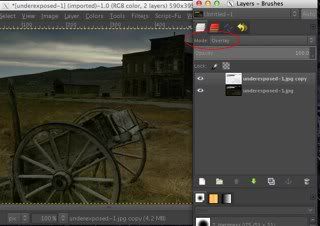
In the Layers pallet, change the Mode of the duplicate layer to Overlay.

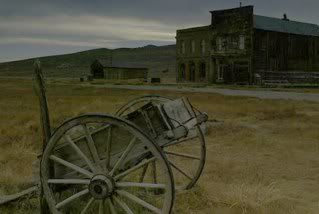
You should now have a somewhat better looking photo than you started with.

I'm going to flatten the image merging the two layers (Image > Flatten Image), and repeat the entire process once more (saturation reduced to -30 this time) to further enhance the image.

Although this isn't a great fix, it will make an underexposed photo much better for casual use, say for Twitter or Facebook, with very little time and effort.

Thursday, February 23, 2012

The Poirot Effect


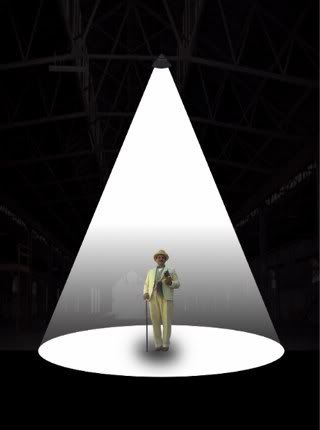
This project was inspired by the opening of the British TV series Poirot. I've always thought the graphics used were very dramatic and interesting, so, I decided to try to create a similar effect using GIMP.
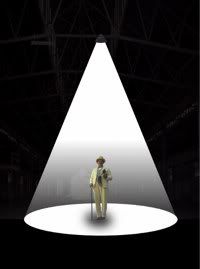
 

pult00.jpg


Some of the things you will do in this project:

  • Draw a path and make a selection from it
  • Open an image as a new layer in the current image
  • Scale a layer
  • Use guides
  • Apply a layer mask


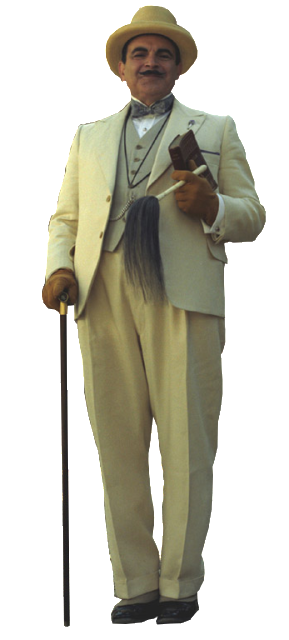
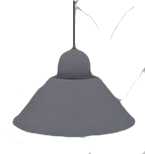
Download these source images before you begin: Poirot | OHVLamp


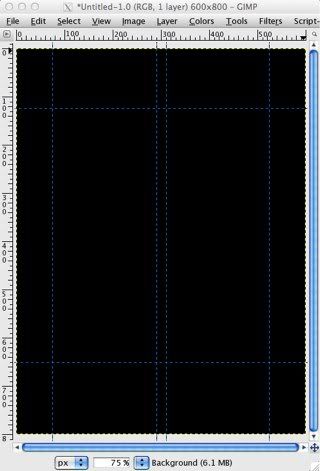
Create a new image 800 pixels tall by 600 pixels wide. Fill it with default black using the Bucket Fill Tool. Drag out vertical guides to 525, 310, 290, and 75 pixels. Pull down horizontal guides to 650 and 125 pixels.
pult01.jpgimg: pult01


Step 1. The light cone

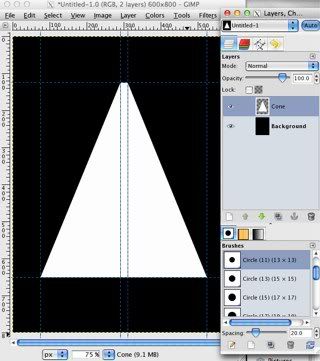
Choose the Paths Tool. Draw a tall trapezoid with corners at 290, 125; 75, 675; 525, 675; and 290, 125. In the Tool Options, click on the Selection from Path button. Create a new transparent layer named Cone. Use the Bucket Fill Tool to fill the selection on the Cone layer with white. Then deselect, Select > None.
pult02.jpg


Step 2. The light fade

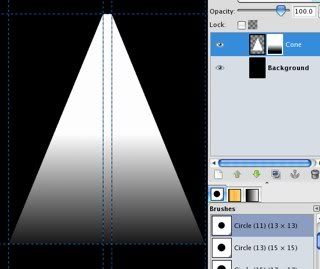
Add a white layer mask to the Cone layer, Layer > Mask > Add Layer Mask… . Using the Blend Tool, draw a black-to-white gradient up from the bottom of the trapezoid. You may have to experiment a few times to get the best effect. I went from 675 pixels up to 400 perpendicular to the base of the image.

ipult03.jpg
 

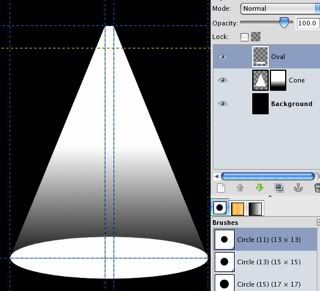
Step 3. The oval of light on the floor

Choose the Ellipse Select Tool. Draw a white oval 450 pixels wide and 95 high. Make a new transparent layer, Oval. Fill the selection on this layer with white. Deselect. Use the Move Tool to center it over the lower horizontal guide.
pult04.jpg


Step 4. Hercule

Open the Poirot image as a new layer in the image, File  > Open as Layers… . From the Layer menu, choose Scale Layer… , and scale it down to an appropriate size (I used 25%). Position this layer so that the feet are in the center of the light oval.
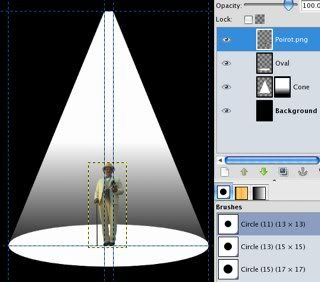
pult05-1.jpg


Step 5. Poirot's shadow

Add a new transparent layer, name it Shadow. With the Ellipse Select Tool, draw an oval around Poirot's feet. Fill it with black using the Bucket Fill Tool. Deselect. Select the Rotate Tool and turn it a little clockwise, about 5 degrees. You may need to adjust the position a bit with the Move Tool.
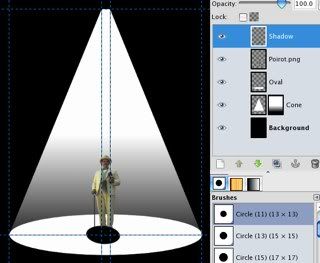
pult06.jpg


Apply a Gaussian blur with a Radius of of about 45, Filters > Blur > Gaussian Blur… . Drag the Shadow layer under the Poirot layer. Turn down the opacity to about 85%.
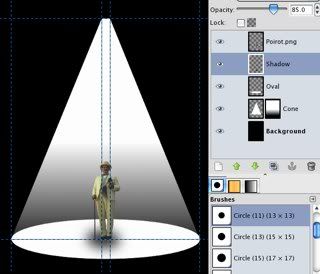
pult07.jpg


Step 6. The overhead lamp

Open the OHVlamp image as a new layer on top of all the other layers. Scale it down to an appropriate size (I used 30%). Position it over the top of the light cone.
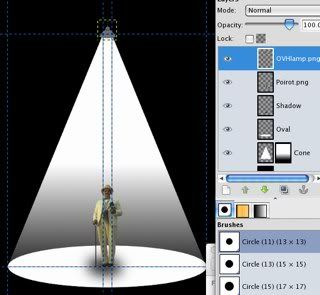
pult08.jpg


Adjust the Brightness-Contrast from the Color menu, Brightness: -100, Contrast: 30.
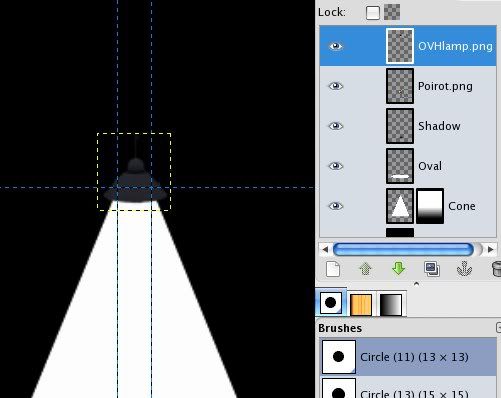
pult09.jpg


Extension

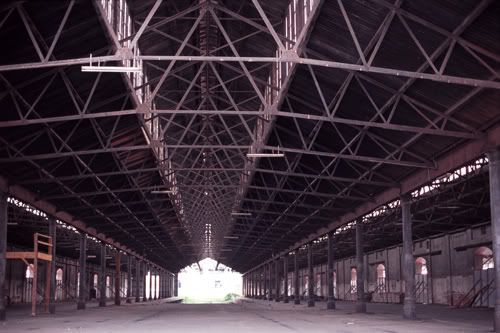
If you wish to continue, download this image:  Industrial

http://i221.photobucket.com/albums/dd67/xmath_photos/GIMP%20Blog/Poirot%20Light/Industrial.jpg


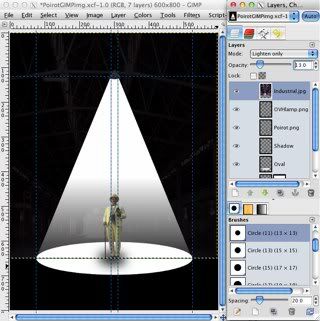
Open the Industrial image as a new layer and drag it immediately above the Background layer in the Layers pallet. Scale the Industrial layer to fill the image above the lower horizontal guide.
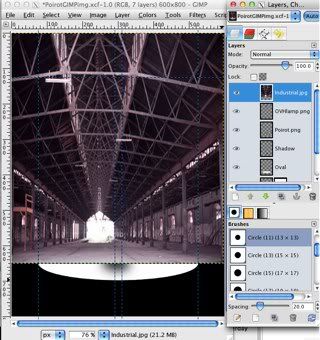
pult10.jpg


Set the blending Mode to Lighten Only and slide the Opacity all the way down to 13.
pult11.jpg


From the View menu hide the guides. That’s it.
pult12.jpg


Friday, September 16, 2011

Two Heads Are Better Than One


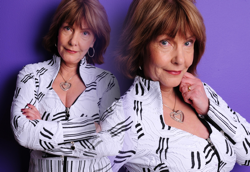
In this easy GIMP exercise you'll combine two images together into a nice, blended single image with two views of the same subject.

2h00.png

Some of the things you will do in this lesson:

  • Create a new image of a specific size
  • Select and copy an entire image
  • Paste a new layer from the clipboard
  • Use a layer mask with the Blend Tool

First, grab the two source images by Annika Banfield from stock.xchng:

Image A | Image B

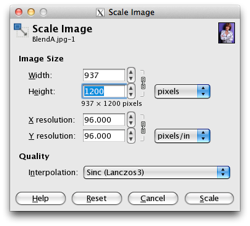
These images will be very large, so the first task is to resize the two images to a smaller easier-to-work-with size, but more importantly, so that both images are the same height, Image > Scale Image… . I resized both to have a height of 1200 pixels,

2h01.png

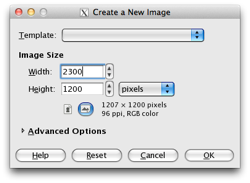
Create a new image, File > New…, with the same height (1200 pixels) and a width approximately equal to the sum of the widths of the two source images (2300 pixels).

2h02.png

Select all of Image B, Select > All (or Ctrl+A). and copy it, Edit > Copy (Ctrl+C). Paste it onto the new image as a new layer, Edit > Paste as > New Layer. It will appear as a new layer named Clipboard. Rename it as Layer B. Use the Move Tool to position Layer B a bit right of center in the new image.

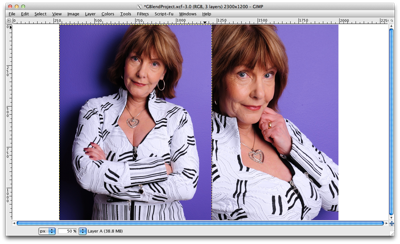
Repeat this process with Image A, naming this layer Layer A. Position Layer A a bit left of center in the new image, overlapping Layer B.

2h03-1.png

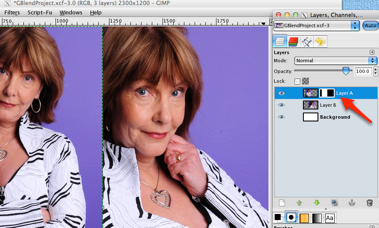
Add a white (full opacity) layer mask to Layer A, Layer > Mask > Add Layer Mask (or right-click Layer A in the Layers pallet).

2h04-1.png

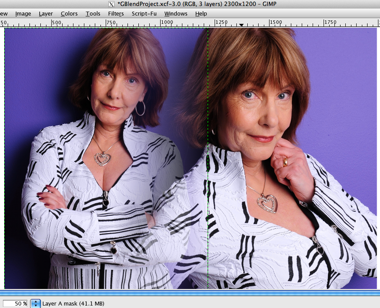
Select the Blend Tool from the Tools pallet, and choose the foreground-to-background (default colors) linear gradient in the Tool settings. Click and drag the cursor horizontally from the right edge of Layer A to gradually fade in the overlapping portion (to about the middle of Layer A).

2h05.png

See a video showing how to do this.

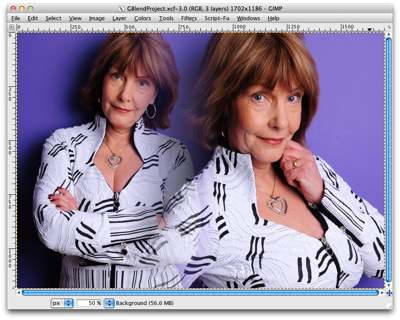
Finally, with the Crop Tool, remove the excess background area of the image. You now should have a nicely blended image combining two portraits of the model.

2h06.png

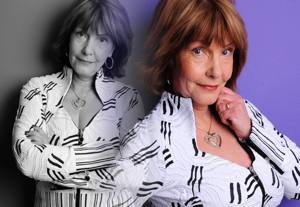
I'm going to apply each of two different effects to Layer A as possible extensions to this project. (Be sure Layer A is the active layer in the Layers pallet before applying any of these effects.)

Desaturate Layer A

2h07.png

Remove the color from Layer A, Colors > Desaturate.

Blur Layer A

2h08.png

Add a Gaussian blur to Layer A, Filter > Blur > Gaussian…, with a Radius of about 20.

Be bold and creative, experiment with as many effects and filters as you like.


Thursday, March 24, 2011

Rain Dance

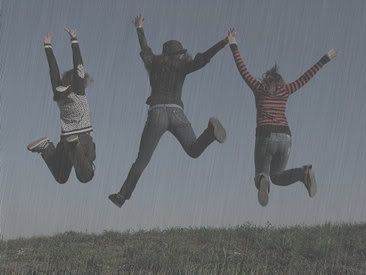
In this project you'll learn how add the effect of rain to an image using GIMP.

rain-gimp-sml.jpg

In this exercise, you will:

  • Make color adjustments with the Hue-Saturation... dialog
  • Adjustment brightness and contrast
  • Use the noise generator
  • Apply a motion blur

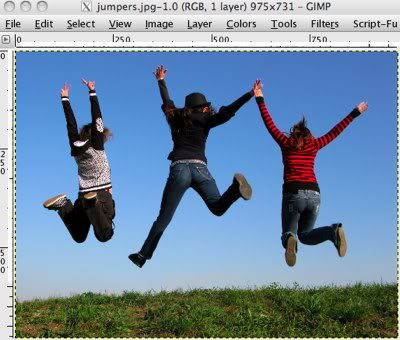
Open the image to which you want to apply the rain effect. You can get the image used in this lesson here. The original photo is by Sanja Gjenero and was downloaded from stock.xchng.

rn01.jpg

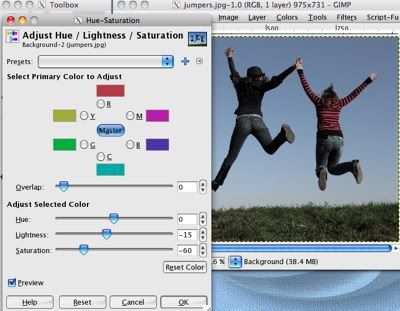
I found it necessary to darken this particular image for a better effect, Colors > Hue-Saturation…, Lightness: -15 Saturation -60. You may or may not need to adjust your image similarly.

rn02.jpg

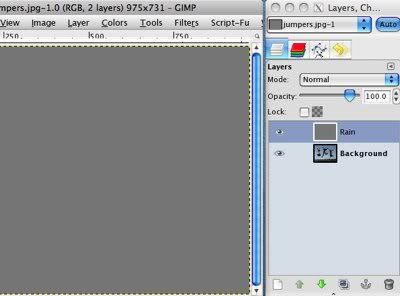
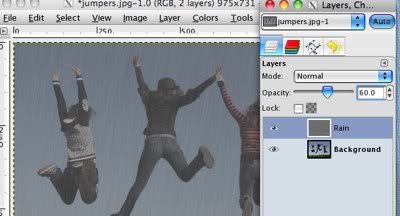
Add a new transparent layer named Rain. Set the foreground color to a medium gray. I used #767676. Fill the Rain layer with the foreground color, Edit > Fill with FG Color.

rn03.jpg

The rain effect is created in four steps:

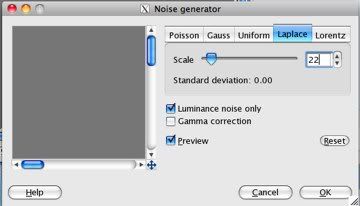
1) Add noise to the Rain layer. Filters > Noise > Noise Generator…, click the Laplace tab and set the Scale to about 22. Luminance noise only should be checked to get grayscale noise rather than color.

rn04.jpg

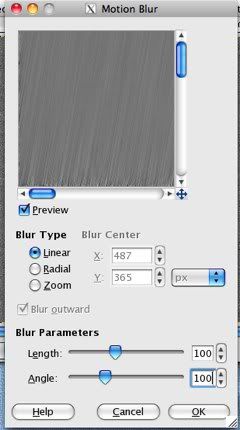
2) Blur the noise. Filters > Blur > Motion Blur…, Blur Type: Linear, Blur Parameters: Length 100, Angle 100.

rn05-1.jpg

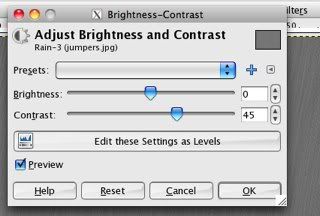
3) Increase the contrast. Colors > Brightness-Contrast…, increase Contrast to about 45.

rn06.jpg

4) Decrease the opacity of the Rain layer. In the Layers pallet, slide the Opacity control left to about 60.

rn07.jpg

There you have it!

rain-gimp.jpg

There's a lot of room for tinkering with these settings to achieve just the effect you want. Go ahead, be a mad scientist, control the weather!