Hello Bar

Tuesday, August 14, 2012

Blending Two Images - Updated


Blending Two Images with GIMP has been by far the most popular tutorial I have ever posted. However, it is 5 years old and much in need of updating to reflect the many improvements made in GIMP in that time. Following is an updated tutorial using GIMP 2.8.


Select two pictures you want to blend. Choose one to use as the base image and open that one. Name it Base.


Next, you will need to increase the canvas size, Image>Canvas Size..., of this image to accommodate pasting in the other image. In this example, I increased the width of the canvas to 200%, but kept the height the same. In the canvas size dialog, slide the existing image all the way to the left on the canvas. Later you can crop out any unused transparent area.


Open the other image as a new layer in the base image, File>Open As Layers... . Name it Top.


With the Move Tool, position the Top layer so that it overlaps the Base layer an appropriate amount.

Temporarily hide the Top layer by clicking the  in the Layers pallet. Drag a vertical guide out from the ruler on the left to mark the right edge of the Base layer.


Make the Top layer visible again, by clicking the . Add a layer mask to the Top layer. In the Layers palette, right-click the Top layer and select Add Layer Mask…, select White (full opacity).


Be sure the color swatches are set to the default colors. With the Blend Tool paint a FG-to-BG gradient on the layer mask by drawing a horizontal line from the middle to the right edge of the overlapping area.


The two images should now be blended together as shown.


Finish up by flattening the blended images into a single layer, Image>Flatten Image. Use the Crop Tool to remove any unwanted portions of the image.


This is a simple procedure to blend two images. There are many other things you can do to further enhance the image, but those are not the subject of this tutorial.

Thursday, August 9, 2012

Southern Exposure

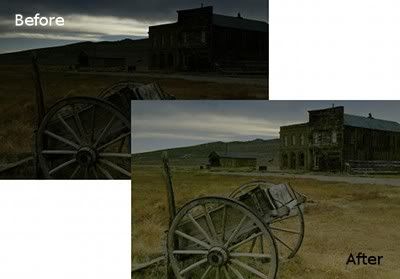
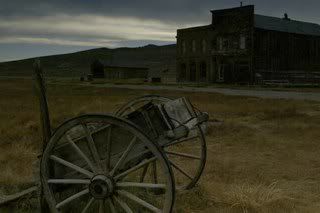
In this short lesson you will learn a quick, easy procedure to use when you need to recover a badly underexposed photograph. A photograph is described as underexposed when there is not enough light in the photo, so it has a loss of shadow detail. This GIMP tutorial is based on a method described by Dave Johnson in PCWorld.

Open the image you want to make a bit more presentable.

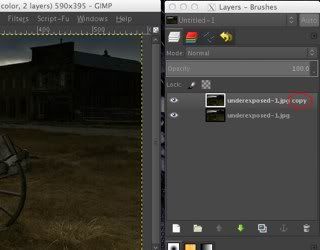
Duplicate the background layer (right-click on the layer and select Duplicate Layer or select Duplicate Layer from the Layer menu) so that there are two identical layers in the Layers pallet.

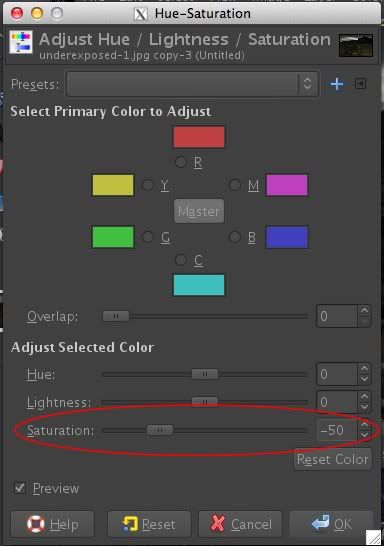
Be certain the duplicate layer, [image name] copy, is the active layer. From the Colors menu select Hue-Saturation... . Slide the Saturation control left to reduce the saturation to -50.

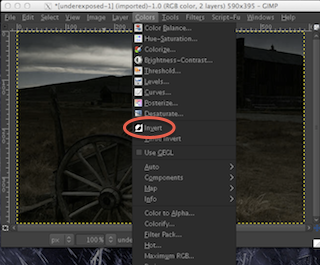
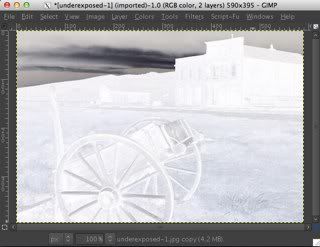
Again from the Colors menu, choose Invert.


The top layer should now look more or less like the negative of a black-and-white photo.

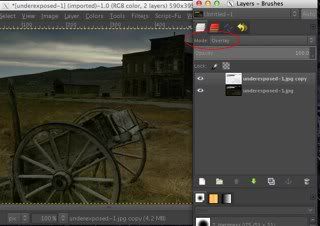
In the Layers pallet, change the Mode of the duplicate layer to Overlay.

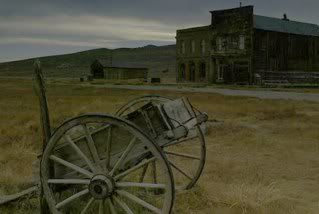
You should now have a somewhat better looking photo than you started with.

I'm going to flatten the image merging the two layers (Image > Flatten Image), and repeat the entire process once more (saturation reduced to -30 this time) to further enhance the image.

Although this isn't a great fix, it will make an underexposed photo much better for casual use, say for Twitter or Facebook, with very little time and effort.

Saturday, April 14, 2012

Through a Keyhole


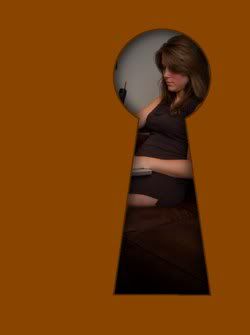
In this GIMP project, you will learn how to use layers, selection tools, the stroke dialog, and filters in creating the effect of looking through a keyhole.

imgfini.jpg

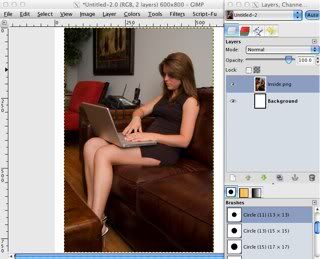
Start by creating a new image 600 pixels wide by 800 pixels high. Open the image that you want to appear through the keyhole as a new layer, File > Open as Layers… . Note: It may be necessary to scale and/or reposition this image to get the best effect.

img01.jpg

  • Making the keyhole.

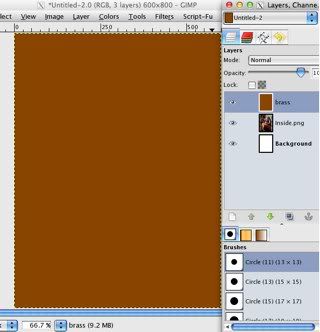
Create a new layer, brass, on top. With the Bucket Fill Tool, fill it with a brass-like color. I used #8a4500.

img02.jpg

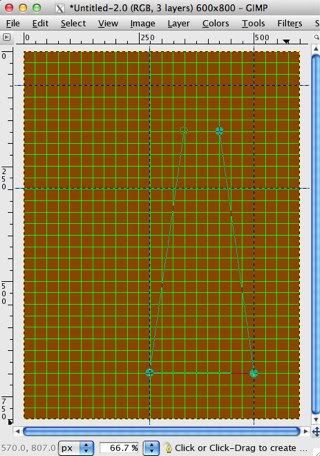
Set gridlines every 25 px in the Preferences panel, Edit > Preferences. In the View menu, turn on Show Grid (the box is checked).

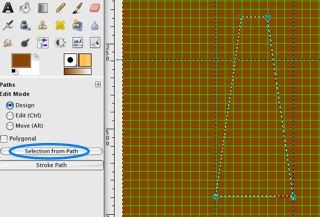
Using the Paths Tool, draw a tall, narrow trapezoid, as shown below, to be the lower part of the keyhole. Suggestion: Dragging out guides can make the selections easier.

img03.jpg

Now, in the Tool Options click the Selection from Path button to turn the path into a "marching ants" selection.

img04.jpg

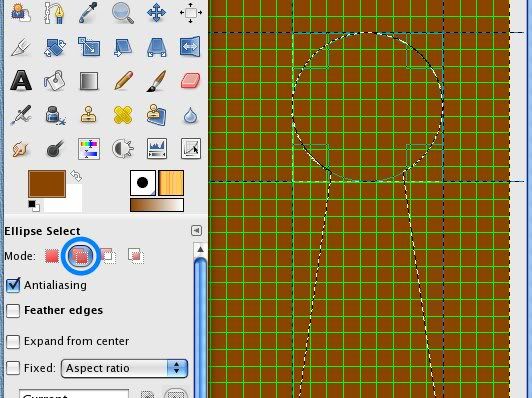
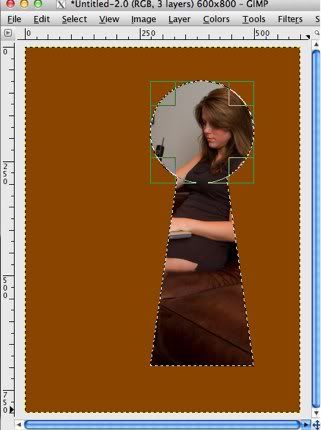
With the Ellipse Select Tool (in Add to the current selection mode) draw a circle to be the top portion of the keyhole as shown below.

img05.jpg

Be sure brass is the active layer. Clear the contents of the keyhole-shaped selection, Edit > Clear. In the View menu, turn of the grid and guides.

img06-1.jpg

  • Putting a slight edge around the keyhole.

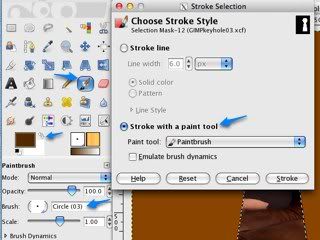
Create a new layer named edge on top. Make sure edge is the active layer and stroke the selection, Edit > Stroke Selection…, click the radio button for Stroke with a paint tool, and choose Paintbrush from the drop-down menu. In the Tools pallet, select a paintbrush of about 3 pixels. Set the color to a very dark brown (#532a00). Finally, in the Stroke Selection dialog, click Stroke.

img07.jpg

  • Put a little bit of shadow inside the edges of the keyhole.

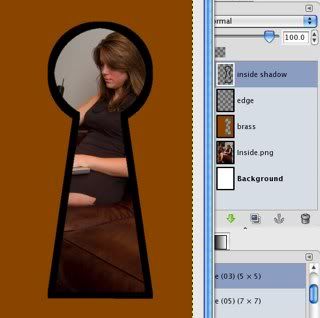
Make a new layer on top, inside shadow. Using Stroke Selection again, chose the Stroke line style, a width of about 15 px, and solid default black, click Stroke. Then, remove the selection, Select > None.

img08.jpg

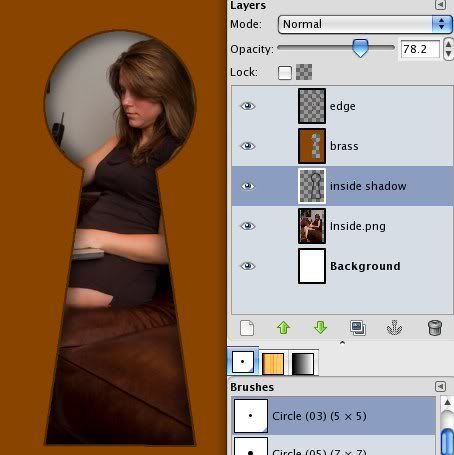
Apply a Gaussian blur with a radius of about 35, Filters > Blur > Gaussian blur… . Drag the inside shadow layer immediately under the brass layer. Decrease the opacity to about 75-80%.

img09.jpg

  • Add some shadow through the keyhole.

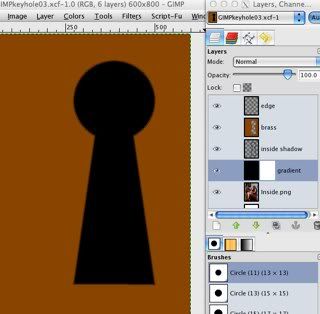
Create a new layer above the inside layer, name it gradient, and fill it with black using the Bucket Fill Tool. Add a layer mask to the gradient layer, right-click the layer in the Layers pallet and select Add Layer Mask… .

img10-1.jpg

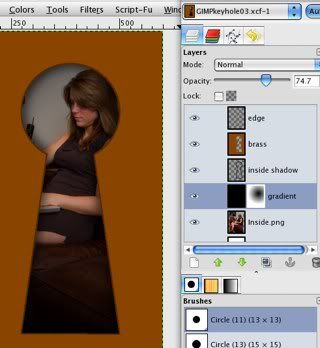
Select the Blend Tool and choose a black-to-white radial gradient. Drag the Blend Tool vertically downwards in the lower portion of the keyhole to reveal the inside layer. You may have to experiment a few times to get a good result. Decrease the opacity to about 75%.

img11.jpg

As they say in Montreal, “Voila!” There are numerous opportunities for modifications and variations in this project, so be bold and have fun!