Hello Bar

Saturday, December 22, 2012

Stick a Label on It

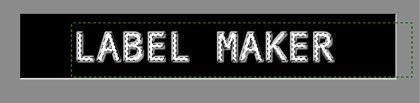
In this GIMP tutorial you will create an effect that appears similar to a strip of embossed tape as produced by some label makers.
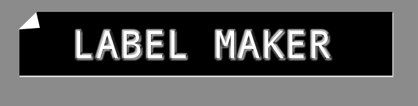
 
 
Some of the things used in this project:
  • Layer Effects-Drop Shadow
  • Layer Effects-Bevel and Emboss
  • Path Tool
  • Merging layers
  • Selection by color
  • Text Tool
 
Note: To complete this tutorial, you will need to have the Script-Fu Layer Effects plugin installed. Get it here if you don't have it yet.

Create a new image 800 pixels wide by 250 pixels, File - New... . Set the foreground color to a medium gray (8b8b8b), then fill the image, Edit - Fill with FG Color.

With the Rectangle Select Tool, make a selection about 500 pixels by 100 pixels.
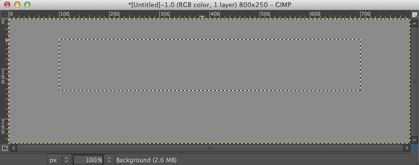


Make a new transparent layer, Layer - New Layer..., named Strip. Reset the color swatches to the default colors. Fill the selection on the Strip layer with the foreground color (black).
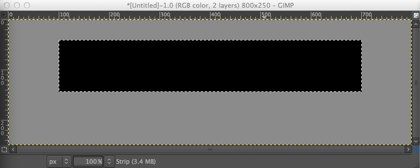

The next step is to add a white drop shadow to the strip. Script Fu - Layer Effects... - Drop Shadow... . Set the Color to white and the Size and Offset Distance each to 2.0.
 
Deselect, Select - None. Make the Strip layer active and merge it with the Script-dropshadow layer, Layer - Merge Down.
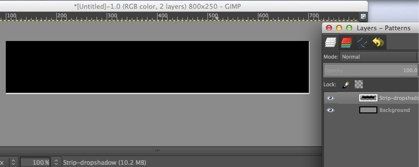
 
 
Click the Text Tool in the Toolbox. In the Tool Options, I used Monospace, 64, white. Click in the black strip and type a line of text.  With the Move Tool, position the text in the center of the black strip.
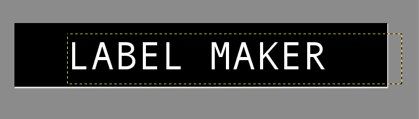
 
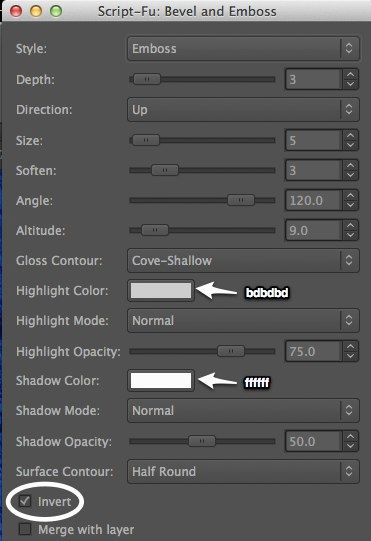
Use the Select by Color Tool and click anywhere in the text to select the white text. Apply the embossing effect, Script-Fu - Layer Effects - Bevel and Emboss… with the settings shown below.


Deselect. In the Layers pallet, select the upper of the two new layers created in the emboss process and merge it down to the lower layer. To the resulting layer, apply a slight blur, Filters - Blur - Blur.
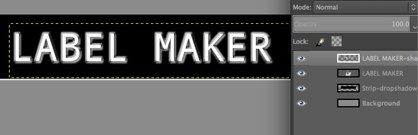
 
 
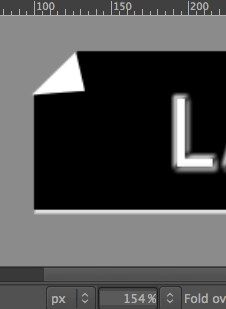
Get an even more authentic effect by 'folding down' a corner. 
 
Make the Strip-dropshadow layer active. With the Paths Tool (in Design mode), draw a triangle in the upper left corner of the black strip. In the Tool Options dialog, click the Selection from Path button. Delete the selected area, Edit - Clear.
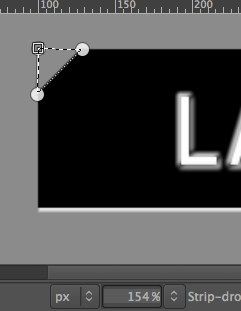
 
 
Deselect everything. From the Paths pallet, delete the path you drew.

Make a new transparent layer, Fold over. Use the Paths Tool again to draw a triangle to represent the folded corner. Convert it to a selection.
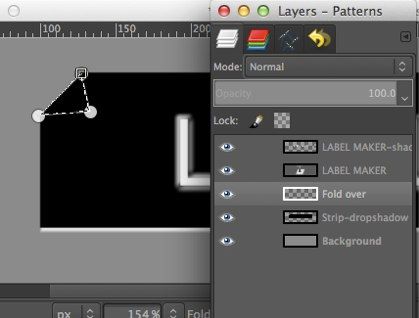
 
 
Fill the triangle with white, Edit - Fill with BG Color. Deselect, and delete the path.
 
 
Note: The Bevel and Emboss settings were determined after a lot of experimentation. You might improve the effect by further refining these settings.

Saturday, December 1, 2012

Carve the Text

In this quick, fairly simple GIMP project, you will create the effect of text having been carved into a textured surface using layers.


Some techniques you will use in this project:

Layers

Text layers

Merging layers

Selection by color

Alpha channels

Noise generator

Gaussian blur


Open a texture image as the Background layer. I used a marble texture that I downloaded from Image*Afterhere. Select the Text Tool and create a text layer with your desired text and center it. Use a bigger, bolder font. I chose Futura Ultra-Bold Condensed, 196 pt.


Create a new empty layer, Layer > New Layer…, name it Gray. Use the Bucket Fill Tool to fill it with a medium grayish-pink color. Drag it under the Background layer in the Layers pallet.

With the Text layer active, make a selection of the text. Use the Select by Color Tool and click on the text.


Hide the Text layer by unchecking its ‘eye’ icon in the Layers pallet. Select the Background layer and add transparency to it, Layer > Transparency > Add Alpha Channel. Clear the selection, Edit > Clear. The Gray layer should now be showing through the text.


Add a new layer, named Black. Invert the selection, Edit > Invert Selection. Reset the color swatches to their defaults, and fill the Black layer with black, Edit > Fill with FG Color.


Duplicate the Black layer, Layer > Duplicate Layer. Name the copy White. Fill the White layer with default white, Edit > Fill with BG Color.


Deselect all, Select > None.
With the White layer selected, choose the Move Tool, slide the White layer up slightly, one or two pixels.
Do the same with the Black layer, except move it straight down. (Note: I have exaggerated this a bit for clarity.)
Select whichever of the Black layer or the White layer is on top, then merge them together into one layer, Layer > Merge Down. Name the merged layer Shadow.


Apply a slight Gaussian blur with a radius of about 3.5 pixels to the Shadow layer, Filters > Blur > Gaussian Blur… . Drag the Shadow layer between the Background layer and the Gray layer.


Finally, add a little texture to the carved surface within the letters.
Select the Gray layer. Add some noise, Filters > Noise > Noise Generator. In the  dialog, click the Poisson tab, 1 Photon, Luminance noise only is checked, Gamma correction is not checked.


Apply a Gaussian blur with a radius of 2 pixels.


To extend the project, you might like to use the original textured background instead of the Gray layer. Make some slight brightness adjustments and apply a little blur.


Wednesday, November 28, 2012

Happy Holidays!!! A Text Project


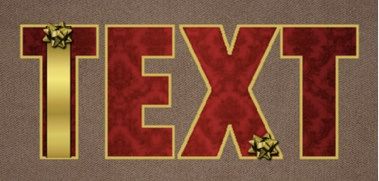
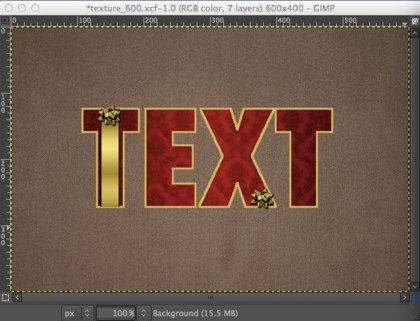
In this GIMP project, you will use layers, strokes, and several other techniques to create a festive holiday text effect.
 
 
Resources you can download:
 
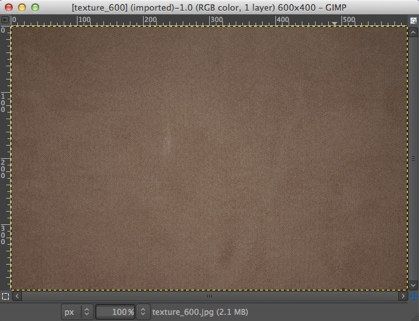
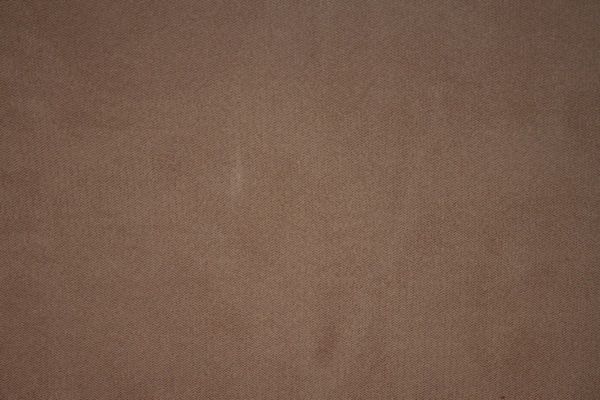
Open the background texture image as the Background layer.
 
 
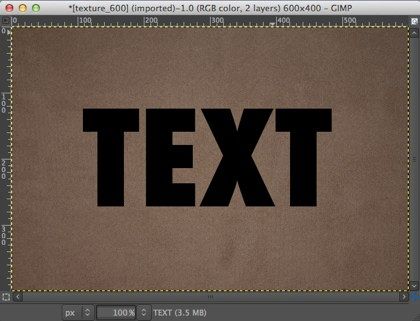
Select the Text Tool and create a Text layer using a big, bold font. I used Futura Ultra-Bold Condensed, 196 point. Set the size of the Text layer to the size of the image, Layer > Layer to Image Size.
 
 
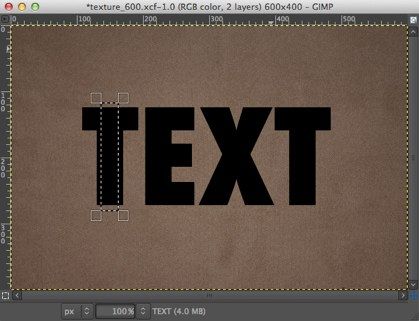
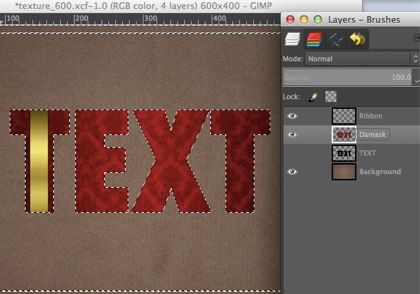
With the Rectangle Select Tool, make a selection on a vertical section of a letter.
 
 
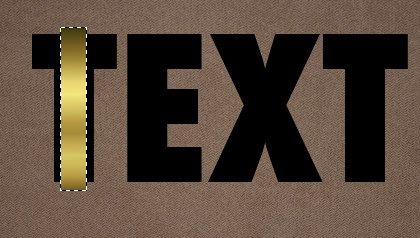
Create a new layer, Ribbon. Select the Blend Tool and fill the rectangular selection with the preset Golden gradient.
 
 
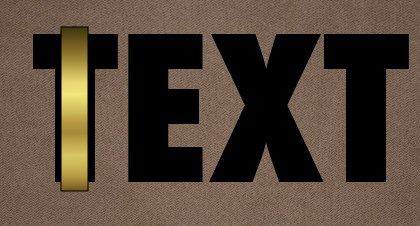
Create another new layer, Ribbon edge. Apply a 1 pixel stroke to this selection, Edit > Stroke Selection…, Stroke line, Solid color. Deselect, Select > None. 


Select the upper of the two ribbon layers and merge them together, Layer > Merge Down.
 
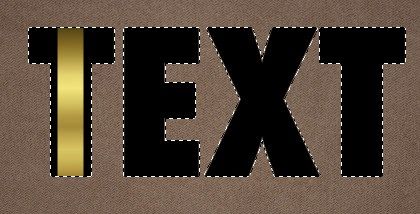
Make the Text layer active and select the text by clicking anywhere on the black text with the Select by Color Tool. Invert the selection, Select > Invert. Now, with the Ribbon layer active, clear the part of the ribbon that lies outside the text, Edit > Clear.
 
 
You can now hide the Text layer by clicking the 'eye' icon in the Layers pallet.
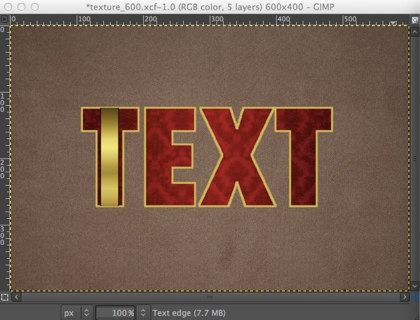
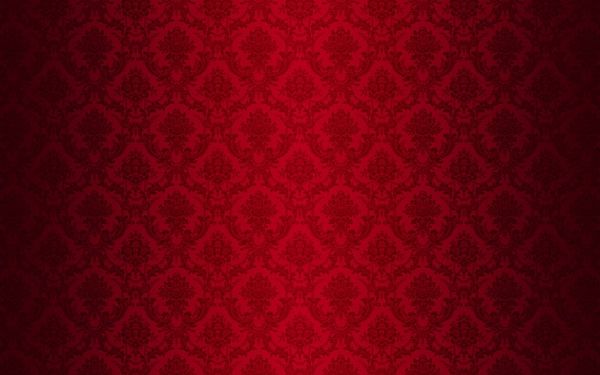
Open the red damask image as a new layer, File > Open as Layers..., name it Damask. In the Layers pallet, drag the Damask layer between the Text and Ribbon layers. Add transparency to the Damask layer, Layer > Transparency > Add Alpha Channel. Clear the selection to remove the part of the Damask layer outside the text.
 
 
Invert the selection again so that you can paint a thin border around the text. Create a new layer, Text edge. Use the Color Picker Tool to choose a color from the middle of the gold ribbon (the Ribbon layer must be active). Select the Text edge layer, and from the Edit menu, choose Stroke Selection…, Stroke line, Solid color.  The width should be about 3 pixels. Deselect.
 
 
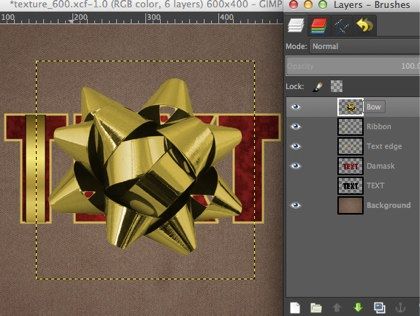
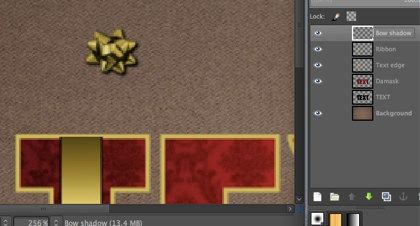
Open the gold bow image as a new layer and place it on top of all the others. Name it Bow.
 
 
You now need to shrink the bow down a lot. Choose the Scale Tool, grab a corner handle of the bounding box, and appropriately size the bow. Expand the Bow layer to the image size, Layer > Layer to Image Size. 
 
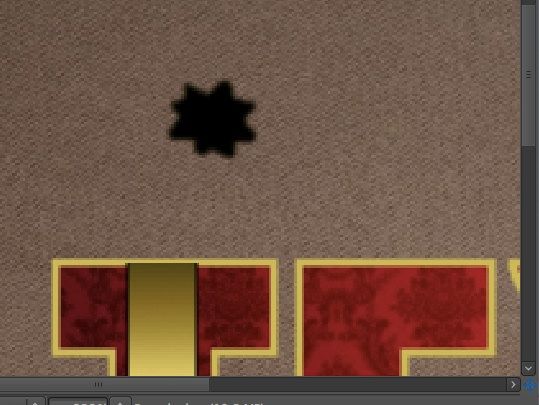
Make a selection from the Bow layer. With the Fuzzy Select Tool, click outside the bow, then invert the selection. You might want to zoom in to do this more easily.
 
Create a new layer, Bow shadow. Set the color swatches back to default colors and fill the selection on the Bow shadow layer with default black. Deselect. Apply a Gaussian blur with a radius of 2 pixels, Filters > Blur > Gaussian Blur… .
 
 
With the Move Tool, slide the Bow shadow layer a bit down and right. Drag the Bow shadow layer under the Bow layer. Merge the Bow layer down onto the Bow shadow layer.
 
 
Duplicate the Bow shadow layer, Layer > Duplicate Layer, and position the bows where you like.
 
 
You might want to add a horizontal ribbon, use bows of various colors, or different textures. Happy holidays!